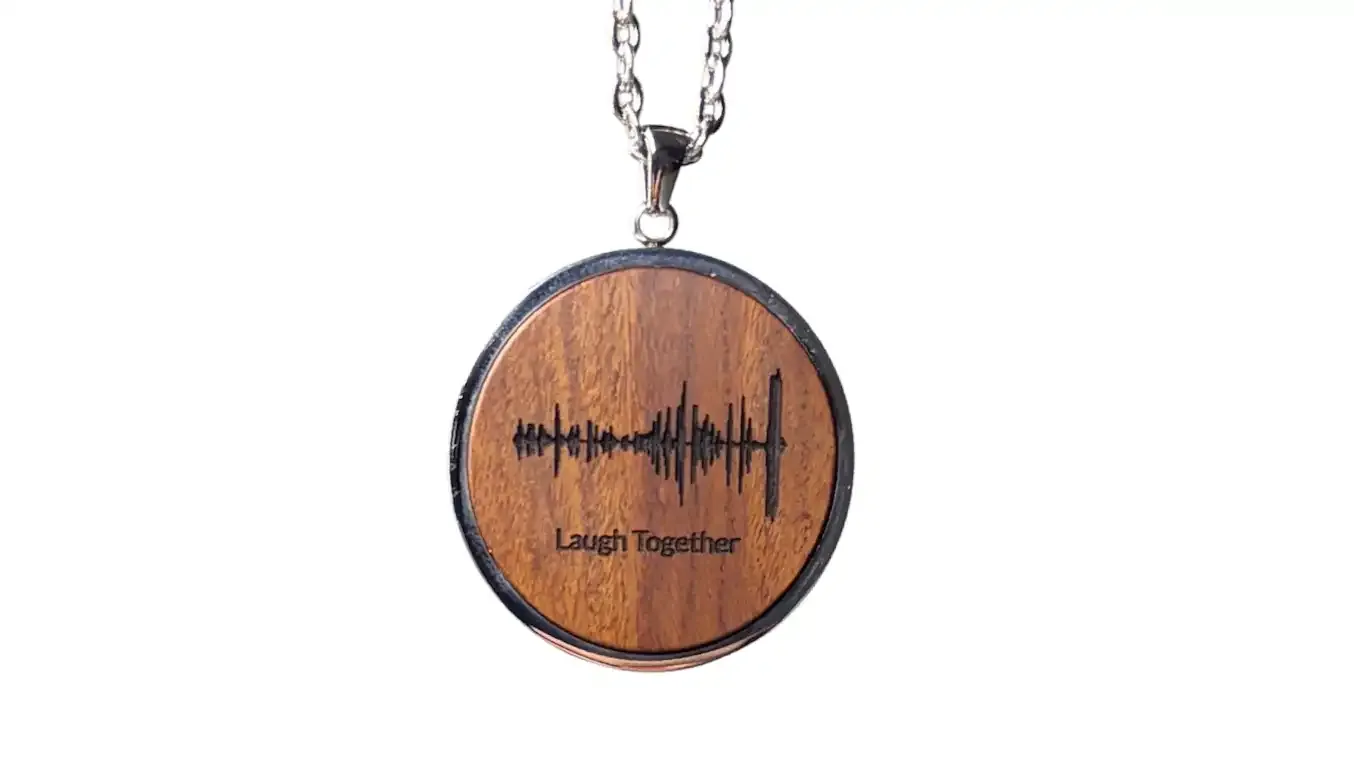
Turn a meaningful voice recording into a personalized, playable necklace. Each Circle Soundwave Necklace is handcrafted from natural ironwood and hypoallergenic stainless steel.
Your unique Soundwave is laser engraved on the front, with optional personalized text beneath it. A hidden NFC chip inside the pendant lets you play your recording with a simple tap of a compatible smartphone. No app, batteries, or charging required.
Each necklace is personally made by Mike using your recording, making every piece completely unique.
You don’t need your recording to order. Upload it now if you have it. Otherwise, after ordering, you’ll receive instructions for emailing or securely uploading your recording whenever it’s ready. After receiving your recording, I’ll create your Soundwave design and email you a proof within 14 hours for approval before engraving begins.
- Natural ironwood pendant (grain and color will vary)
- 304 stainless steel frame and chain with silvertone PVD finish
- 20" chain with 4" extender
- Hidden NFC playback (up to 5-minute recording)
- NFC lifespan is typically around 10 years, though actual lifespan may vary depending on use
- Production time: 1–2 business days
IS YOUR PHONE COMPATIBLE?
Soundwave Art NFC products work with most modern smartphones that include NFC tag-reading capabilities.
Because NFC antenna placement and scanning sensitivity vary by phone model, you may need to move the phone slowly across the product to find the strongest scanning position.
iPhone
Works without an app
The following iPhones can scan the NFC tag automatically while the screen is on:
- iPhone XS, XS Max, and XR
- iPhone 11 series
- iPhone SE, 2nd and 3rd generation
- iPhone 12 series
- iPhone 13 series
- iPhone 14 series
- iPhone 15 series
- iPhone 16 series, including iPhone 16e
- iPhone 17 series, including iPhone 17e
- iPhone Air
- Newer compatible models
Apple introduced background NFC tag reading with the iPhone XS, XS Max, and XR. These models and newer iPhones can recognize a properly formatted NFC web link without opening a separate scanning app. The screen must be on, and the phone may need to be unlocked before opening the link. Apple’s NFC guidance
Works with an NFC-reading app
- iPhone 7 and 7 Plus
- iPhone 8 and 8 Plus
- iPhone X
These phones contain NFC hardware, but they do not support automatic background tag reading. An NFC-reading app may be required to initiate the scan. Apple has supported app-based NFC tag reading since the iPhone 7. Apple Core NFC overview
How to scan with an iPhone
- Wake the phone and make sure the screen is on.
- Place the very top edge of the iPhone against the NFC scanning area (black pearl inlay on the back of the pendant).
- Hold the phone in place for one or two seconds.
- When the notification appears, tap it to open the recording.
Android Phones
Many Android phones can scan NFC tags, but not every Android device includes NFC hardware. Compatibility depends on the specific phone model, not simply its Android version.
Common compatible families include many models from:
- Samsung Galaxy S, Note, Z Fold, and Z Flip series
- Many Samsung Galaxy A-series models
- Google Pixel phones
- Many current Motorola, OnePlus, Sony, Xiaomi, and other Android phones
Some lower-cost models and regional versions may not include NFC, even when a similarly named model does.
How to check an Android phone
Open the phone’s Settings and search for “NFC.”
- If an NFC setting appears, turn it on.
- If no NFC setting appears, the phone may not contain NFC hardware.
- Settings locations and names vary by manufacturer.
Google similarly advises that if an NFC setting is not present, the phone does not have NFC capability. Google NFC instructions
How to scan with an Android phone
- Make sure NFC is turned on.
- Wake and unlock the phone.
- Place the back of the phone against the NFC scanning area. (black pearl inlay on the back of the pendant).
- Begin near the center or upper portion of the phone.
- Move the phone slowly until the NFC antenna finds the tag.
- Hold it in place for one or two seconds.
- Tap the notification that appears to open the recording.
Google Pixel
Google Pixel phones include NFC tag-reading capabilities, including the original Pixel generations and newer Pixel models.
To check that NFC is enabled:
- Open Settings.
- Select Connected devices.
- Select Connection preferences.
- Select NFC.
- Turn on Use NFC.
On most Pixel phones, the NFC antenna is located on the back of the phone near the upper portion of the device. On Pixel Fold and other foldable models, the phone may need to be folded when using NFC. Google Pixel NFC instructions
Windows Phones
Windows phones are not officially supported. Some older models contain NFC hardware, but compatibility with modern NFC web links, browsers, and security requirements can be unreliable.
CLICK FOR CARE INSTRUCTIONS
- Water-resistant (not waterproof)
- Remove before swimming or showering
- Wipe clean with a soft cloth
- Avoid cleaners and prolonged moisture
- Store in a dry place
- Re-oil wood as needed
IMPORTANT NOTE FOR ORDERS OUTSIDE OF THE USA
At this time, Canada is the only country we ship these to outside of the USA. If you are not in one of those countries and are interested in ordering, please contact us with the item you are interested in as well as your full shipping address, and we will get a shipping quote for you.
Once shipped, estimated delivery times for international orders typically range from 1–4 weeks, depending on destination and customs processing. Many orders arrive sooner, but international delivery times cannot be guaranteed.
International orders may be subject to import duties, taxes, VAT, or customs fees charged by your country. These charges are not included in your order total and are the responsibility of the buyer.